
How to Uninstall Apps on Mac (And Remove Leftovers for Real)
If you “uninstalled” an app by dragging it to the Trash… you probably didn’t.
You deleted the icon. The junk stayed: cache files, LaunchAgents, login items, preference plists, random folders in Application Support. That’s why your storage still looks bloated and why the app sometimes “mysteriously” comes back with the same settings after a reinstall.
Here’s the fast way, the safe way, and the “I’m done fighting macOS” way.
The 2‑minute method: uninstall + leftovers in one pass
If you want the app and its baggage gone (not just the .app file), use a proper uninstaller.
This is exactly what CleanDiskGo does on the Apps screen: it finds the main app plus the support files that usually get left behind.
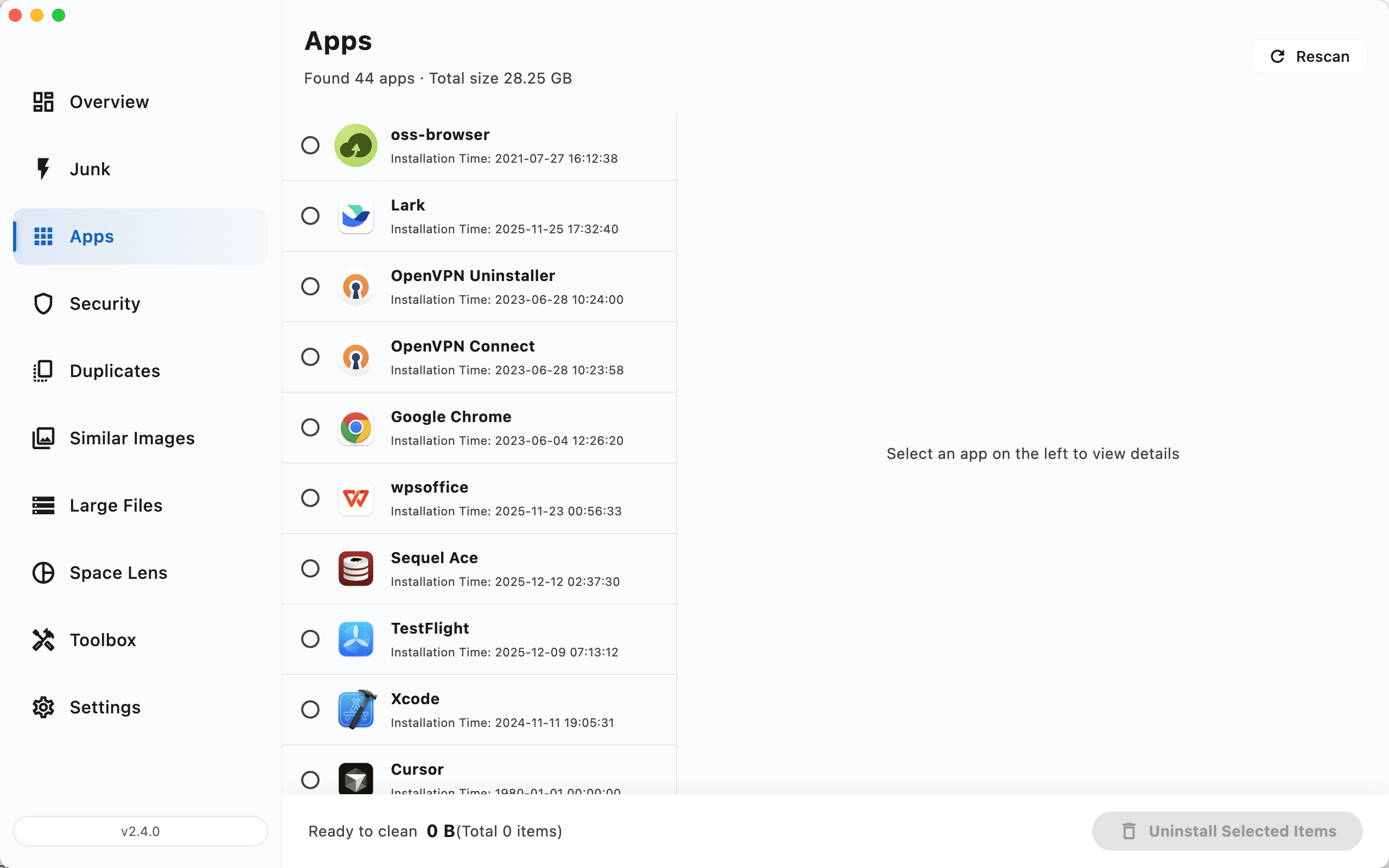
- Open CleanDiskGo → Apps.
- Select the app you want to remove.
- Review the related files it found (binaries + support files + preferences).
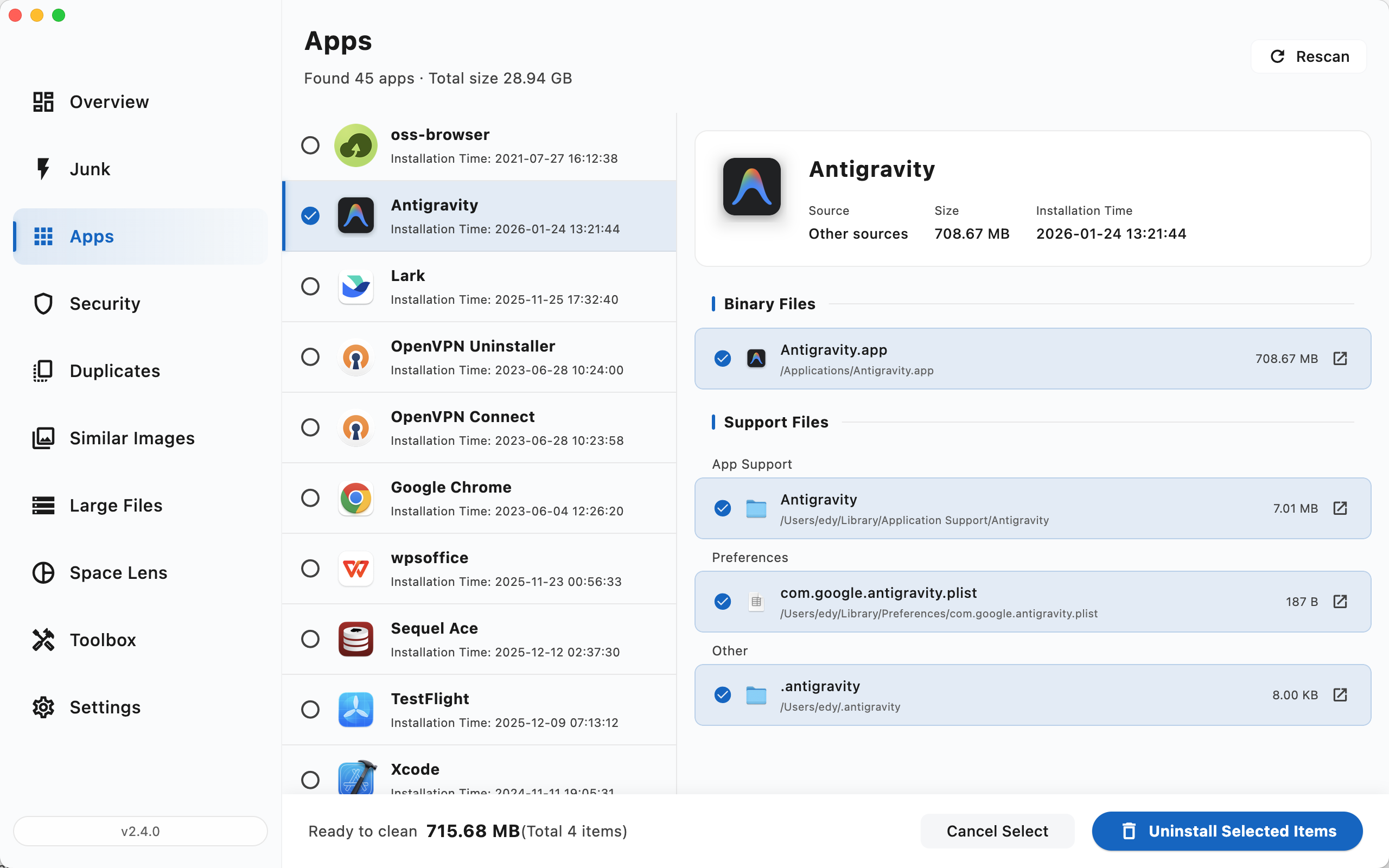
- Click Uninstall Selected Items.
- Confirm what gets removed. If you’re uninstalling something you might reinstall later, choose “Move to Trash”. If you’re done forever, “Delete Permanently”.
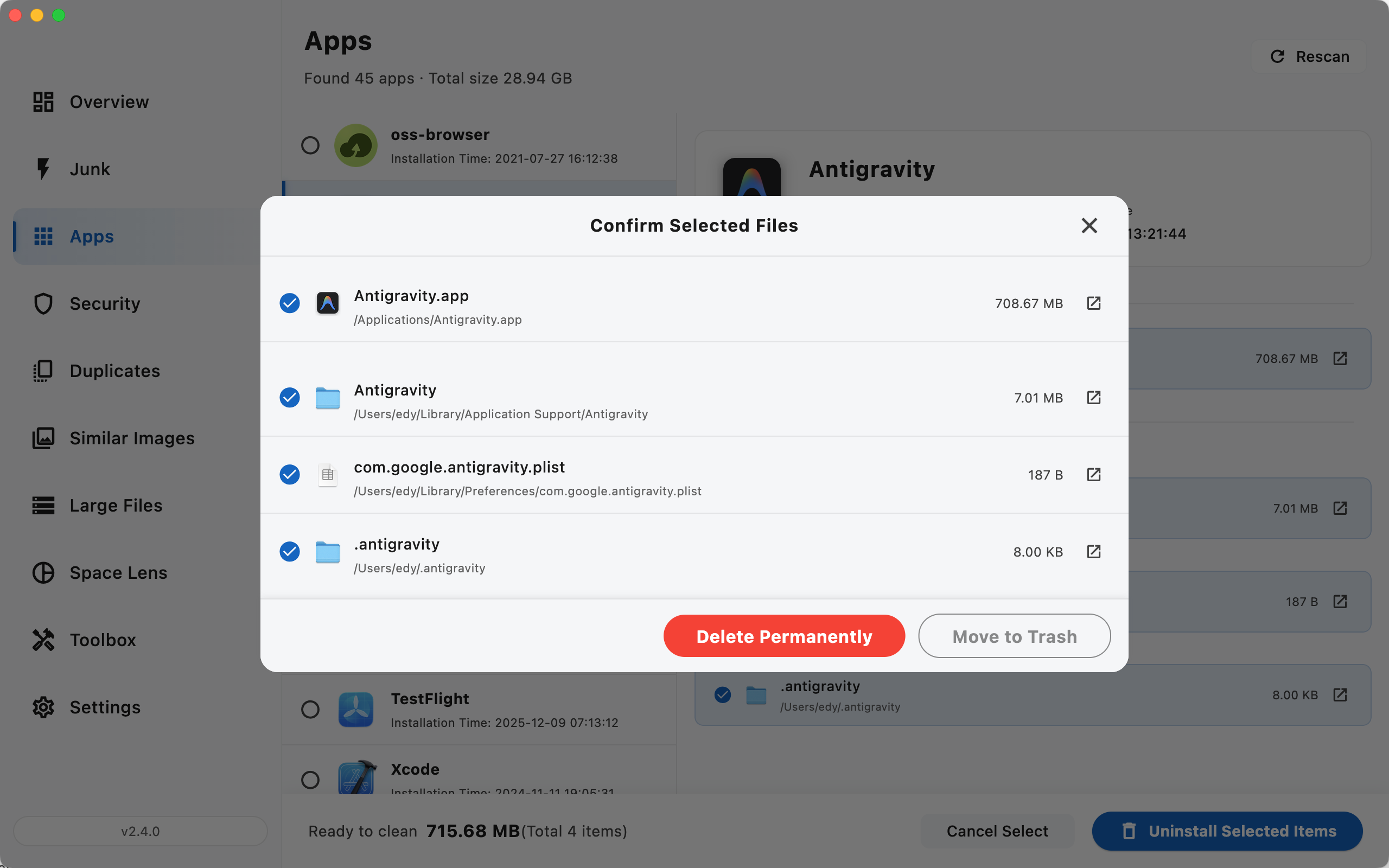
That’s the whole point: you see what’s going away, and you don’t have to play “hunt the plist” in five different folders.
The built‑in ways (fine… but incomplete)
Sometimes the default approach is enough. Sometimes it’s a storage leak in slow motion.
Option A: Uninstall from Finder (most apps)
- Open Finder → Applications.
- Drag the app to the Trash (or right‑click → Move to Trash).
- Empty Trash.
If your Trash refuses to empty, don’t brute‑force random Terminal commands. Use the safer fixes in How to Force Empty Trash on Mac.
Option B: Uninstall from Launchpad (App Store apps)
If the app came from the Mac App Store:
- Open Launchpad.
- Hold Option (⌥) or click‑and‑hold until icons jiggle.
- Click the X on the app.
No X? Then it’s not an App Store app, or it’s protected by macOS. Finder method (or an uninstaller) is your next move.
“Why is the app still on my Mac?” Leftovers you should actually care about
This is where most “uninstall guides” get weirdly vague. So here are the exact places I check when I’m cleaning up manually:
~/Library/Application Support/~/Library/Preferences/(look for a.plistmatching the app’s bundle id)~/Library/Caches/~/Library/LaunchAgents//Library/Application Support//Library/LaunchDaemons/
Two quick rules so you don’t nuke something important:
- If you don’t recognize the folder name or bundle id, don’t delete it.
- If you delete a LaunchAgent/Daemon, reboot after. Otherwise it may keep running.
This manual cleanup works, but it’s slow, and it’s easy to miss one file that keeps spawning the rest.
When macOS blocks deletion (and what that pop‑up actually means)
If you see a message like “Some files need to be removed manually”, that’s usually macOS security restrictions, especially with sandboxed apps.
CleanDiskGo will point you to the exact location so you can remove the protected item safely in Finder:
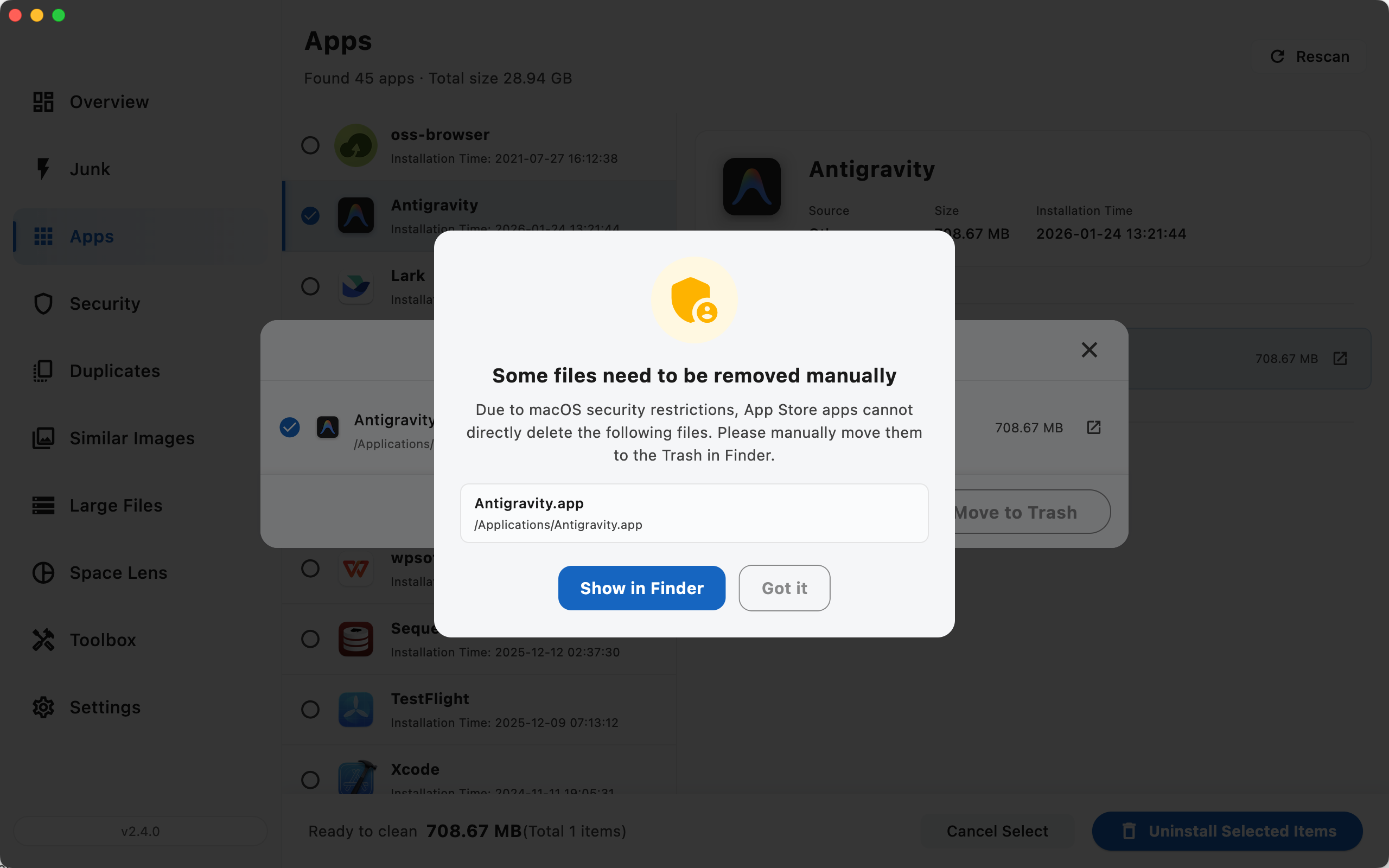
Do the Finder move‑to‑Trash step, then come back and finish the cleanup.
My blunt take
If you uninstall apps once a year, sure—drag to Trash and call it a day.
If you’re constantly trying apps, testing tools, and wondering why “System Data” keeps growing, do yourself a favor: uninstall apps properly and remove leftovers. Your disk will thank you.
If you want the easiest route, start here: CleanDiskGo, and if your storage is already a mess, read How to Clear System Data on Mac.
Start Cleaning Your Mac
Download CleanDiskGo for free and give your Mac a fresh start